Built at Western Illinois University

One tap. Total discretion.
Real help.

FirmGuard SOS reaches the people who matter most the instant something goes wrong: a text with your live location, an in-app alert and an AI voice call, all at once, triggered without anyone around you noticing.

Now in pilot testing at WIU.
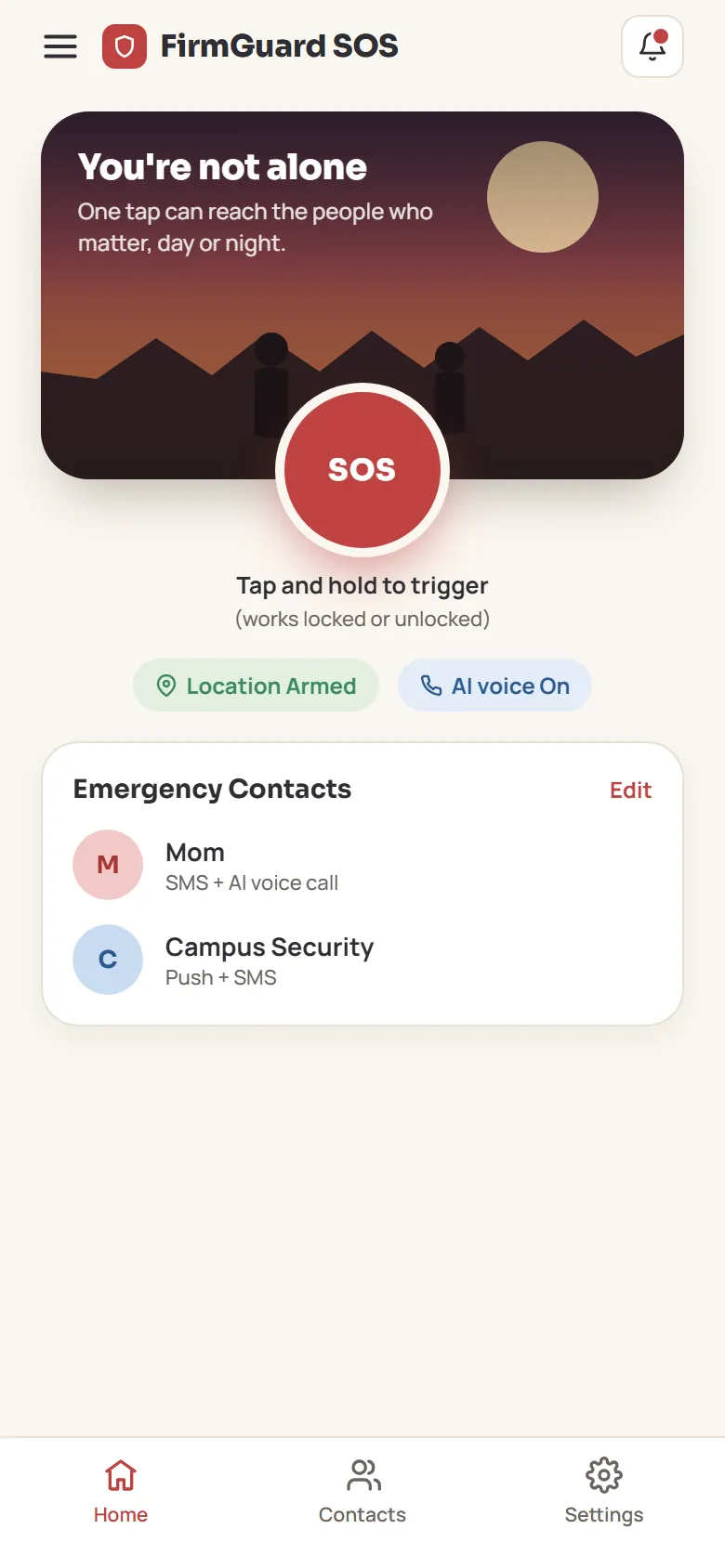
FirmGuard SOS home screen with the SOS button and emergency contacts
Mom: text delivered
Live location shared
Text, push and AI voice, sent together
Live location, shared only with your circle
A trigger that works locked or unlocked
What's inside

Three pillars, one discreet trigger

Emergency SOS

Hold the SOS button, or tap the SOS tile from your lock screen. A short countdown lets you cancel a mistake, then every contact is alerted at once.

Emergency Contact Network

Choose who hears from you and how: a text, an in-app alert or an AI voice call, set person by person, not just for the whole group.

Live Location Sharing

Your contacts open a private link and watch your location update in real time from the moment SOS fires, until you say you're safe.

PIN to cancel

Only your 4-digit PIN ends an alert, so nobody can stop it by grabbing your phone.

Duress PIN

Forced to cancel? A second PIN makes the app look stopped while your contacts are quietly told you may be in danger.

Adjustable countdown

Pick how many seconds you get to cancel before alerts go out. Send now skips the wait.

Reminder texts

While an alert stays open, contacts get short updates so nobody assumes someone else has it handled.

Discreet notifications

A plain-looking notification keeps the alert private on your own screen.

Alert history

See when each alert fired, where you were and who was reached. Kept for 90 days, then deleted.

App tour

See it in action

Real screens from the FirmGuard SOS app, from the first tap to the moment your contacts find you.

    Home screen with a large SOS button
    Countdown screen showing 3 seconds before the SOS is sent
    SOS Sent screen listing delivery status for each contact
    Live location map with the SOS pin and the viewer's own position
    Emergency contacts list with channel icons
    Instructions for adding the SOS tile to Quick Settings
    Settings screen with SOS trigger and lock screen options
    Alert history list with dates, places and contacts reached
    01 / 08

    How it works

    Set up once. Ready every day after.

    1

    Set your trigger

    Hold the SOS button, or add the SOS tile to your lock screen. Pick your countdown and PINs.

    2

    Add your circle

    Family, friends or campus security, each with the channels that reach them best.

    3

    One tap reaches everyone

    Every channel fires at once, with your live location. No single channel has to work alone.

    Try it here

    Feel how fast it is

    Press and hold the button for 2 seconds, just like in the app. You'll see the countdown and what your contacts would receive.

    This is only a demo. Nothing is sent and no one is contacted.

    Press and hold

    Holding for 2 seconds prevents accidental alerts in your pocket.

    Why we built this

    Started as a WIU Cybersecurity Center capstone project

    FirmGuard SOS began with a simple observation: most personal-safety apps make you take several steps to get help, right when taking steps is hardest. It's being built and researched at the Western Illinois University Cybersecurity Center, with a focus on response time, discreet triggering, and what actually gets a signal to the people who can help.

    3Alert channels fired together on every trigger
    0Unlocks needed with the lock-screen tile
    90Days of alert history, then deleted automatically
    4Digits in the PIN that ends an alert, so nobody else can
    For campuses & institutions

    Give campus security a seat at the table

    Campus security can already be added as an emergency contact and reached by voice call. A dedicated response console for security teams is on the roadmap.

    Partner with us
    Campus security as an emergency contact
    Dedicated response console for security teamsComing soon
    Live incident location shared with dispatchComing soon
    Full response history for accountabilityComing soon
    Questions

    Frequently asked

    Does it work when my phone is locked?
    Yes, on Android. Add the FirmGuard SOS tile to Quick Settings, then swipe down from the top of the screen and tap SOS. You can also turn on an SOS button in your notifications. The countdown and the PIN to cancel both work without unlocking.
    What do my contacts receive?
    Depending on what you choose for each person: a text message with a private link to your live location, a push alert if they use FirmGuard SOS too, and an automated voice call that says who needs help and where. While the alert stays open they may get a few short reminder texts, and one final text when you're safe.
    Do my contacts need to install the app?
    No. Text messages and voice calls reach any phone, and the live location link opens in any web browser. Contacts who also have the app get a push alert as well.
    Is my location tracked all the time?
    No. Your location is only sent while an alert is active. When you end the alert, sharing stops and the live link shows that you're safe. See our Privacy Policy.
    I got a text from FirmGuard SOS. How do I stop them?
    Someone added you as an emergency contact. Reply STOP to any FirmGuard SOS text and you won't get any more texts from us. Reply HELP for help. Read our SMS Terms.
    What if I trigger it by accident?
    The button needs a deliberate hold, and a short countdown follows so you can tap Cancel before anything is sent. If alerts already went out, enter your PIN to end the alert and your contacts are told you're safe.
    Does FirmGuard SOS call 911?
    No. FirmGuard SOS alerts the people you choose. It never contacts 911 or other emergency services for you. If you are in immediate danger, call 911.
    When can I download it?
    FirmGuard SOS is in pilot testing at Western Illinois University. The Android app comes first, then iPhone. Contact us to join the pilot.
    Get the app

    Get FirmGuard SOS before you need it

    Free to set up and use during the pilot. Android first, iPhone after. Want early access? Send us a note.

    Contact

    Talk to the team

    Questions, early access, campus partnerships or feedback. We read every message.

    Get in touch

    WhereCybersecurity Center, Western Illinois University, Macomb, Illinois
    Got a text from us?Reply STOP to opt out or HELP for help. SMS Terms

    In an emergency, call 911. This form isn't monitored around the clock.

    Send a message

    This opens your email app with the message filled in, addressed to ad-adebanjo@wiu.edu. Nothing is stored on this website.